Releasing
Our release process is automated as a continuous deployment via the GitHub Actions framework. The logic that governs the process is stored in the workflows directory.
That means that everything necessary to make a release can be done with a few clicks on the GitHub website. All you need to do is make a tagged release at biglocalnews/civic-scraper/releases, then wait for the computers to handle the job.
Here’s how it’s done, step by step. The screenshots are from a different repository, but the process is the same.
1. Go to the releases page
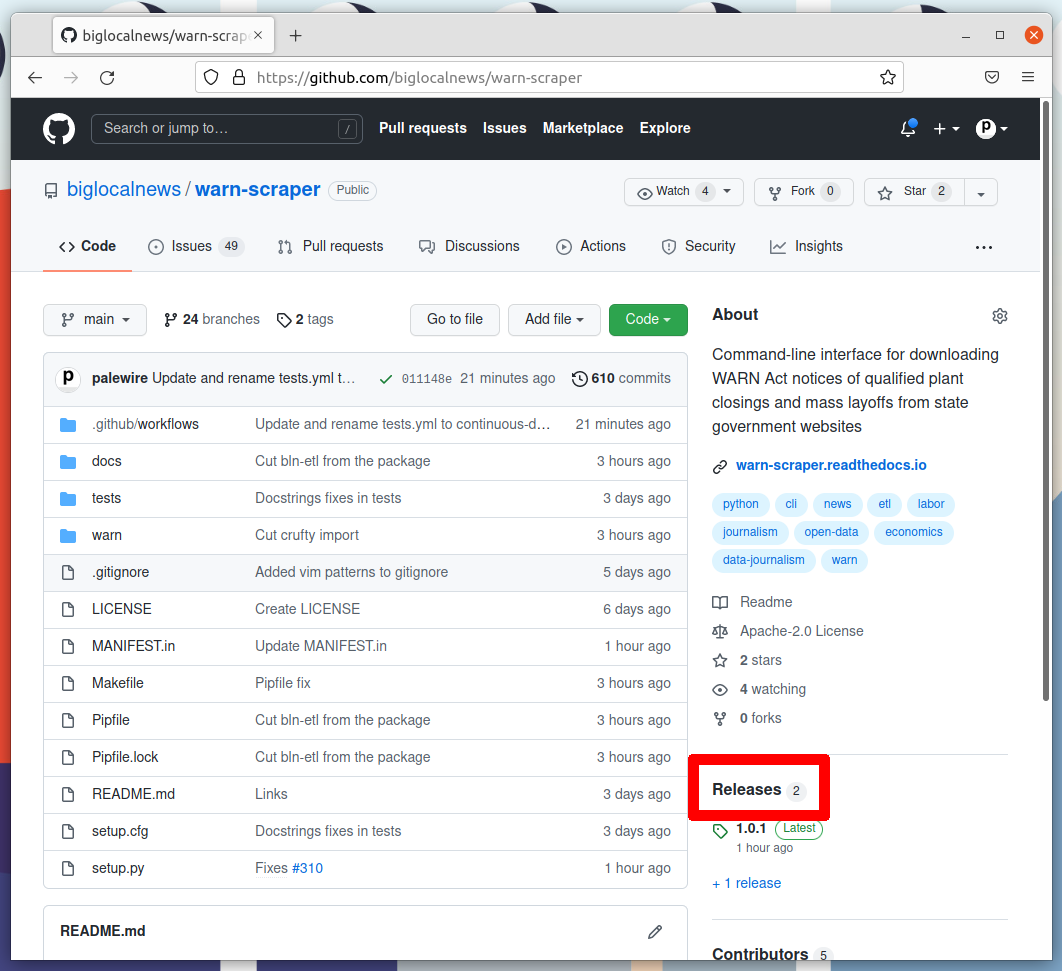
The first step is to visit our repository’s homepage and click on the “releases” headline in the right rail.
2. Click ‘Draft a new release’
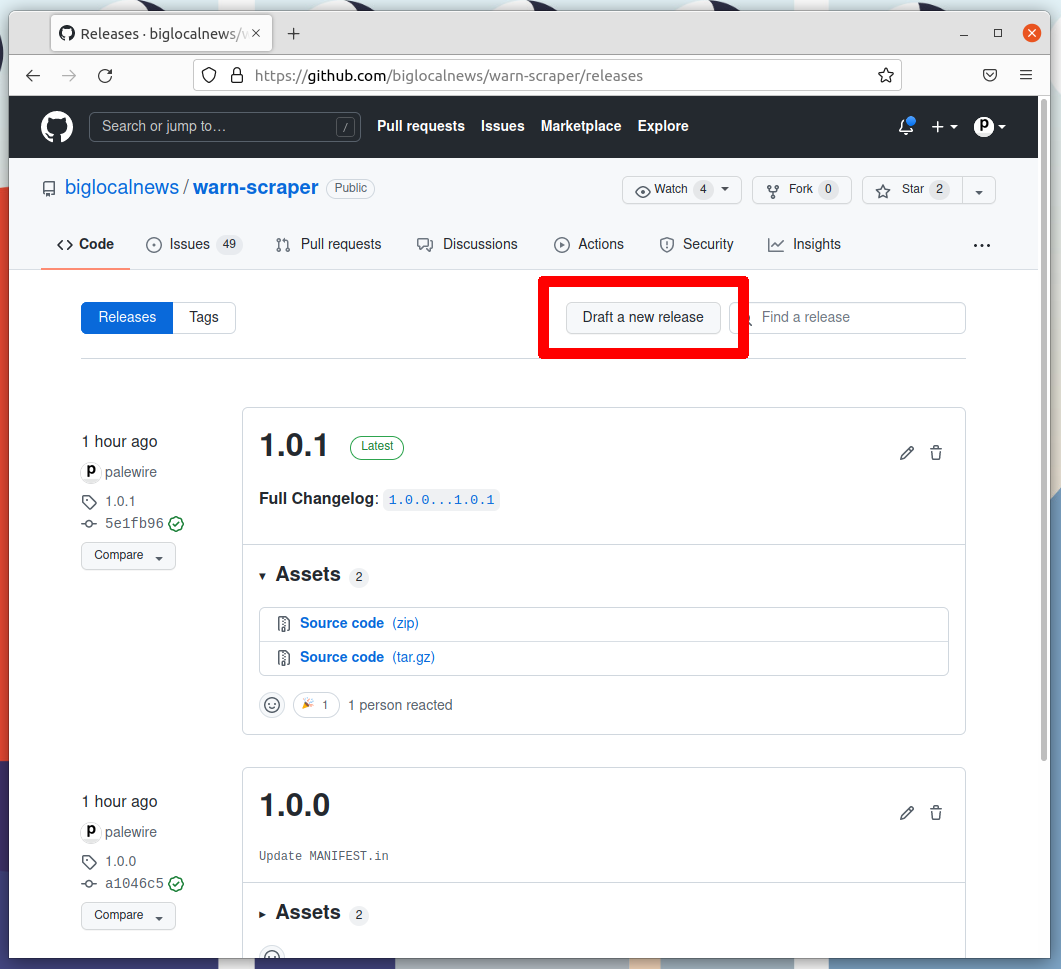
Note the number of the latest release. Click the “Draft a new release” button in the upper-right corner. If you don’t see this button, you do not have permission to make a release. Only the maintainers of the repository are able to release new code.
3. Create a new tag
Think about how big your changes are and decide if you’re making a major, minor, or patch release.
Version numbers follow Semantic Versioning. If you’re making a major release that isn’t backwards compatible, increment the first number. For a minor release (new feature or large change), increment the second. For bug fixes or small changes, increment the third.
Pre-production releases can append a suffix such as -preview, -alpha, or -beta (e.g., 1.0.0-preview). This signals a major milestone while making clear the release is not yet stable or production-ready.
Note: This project uses setuptools-scm, which derives the package version automatically from the git tag you create here — no manual version bumping required.
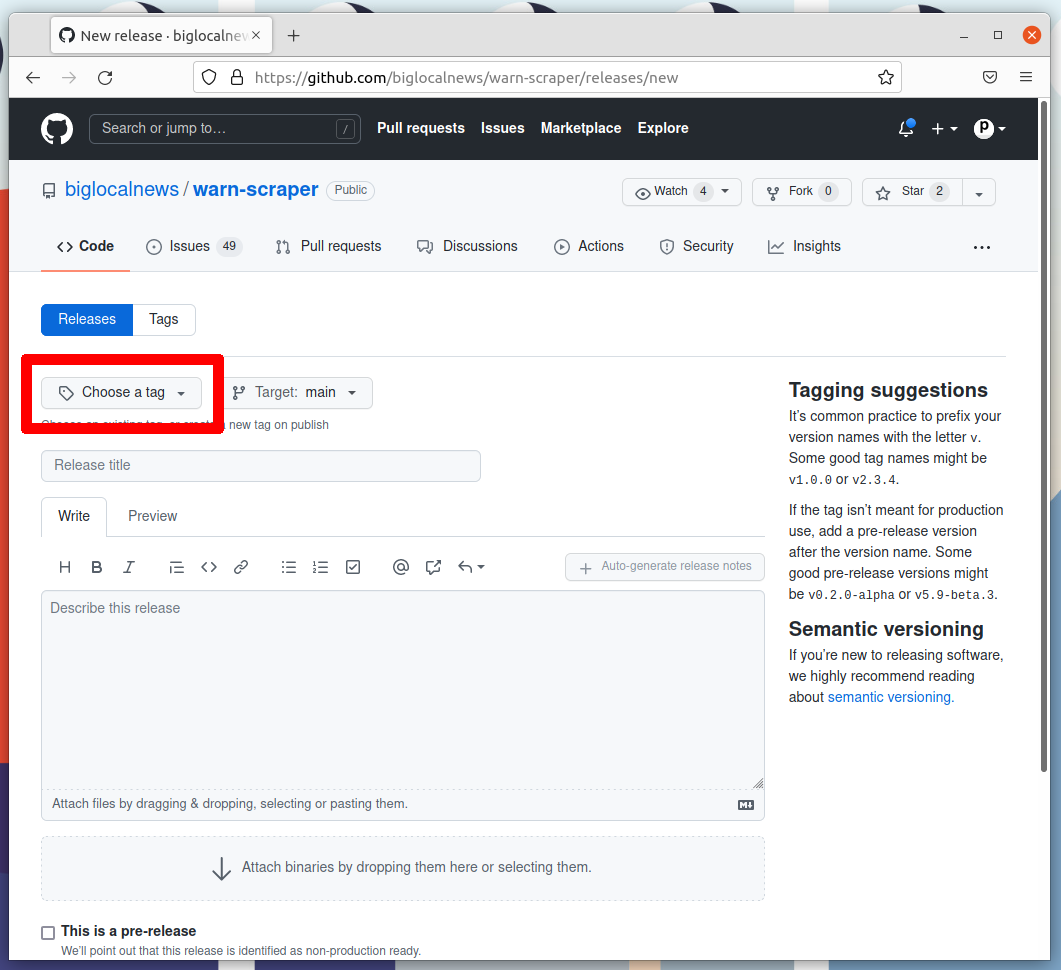
Once you’ve settled on the number for your new release, click on the “Choose a tag” pull down.
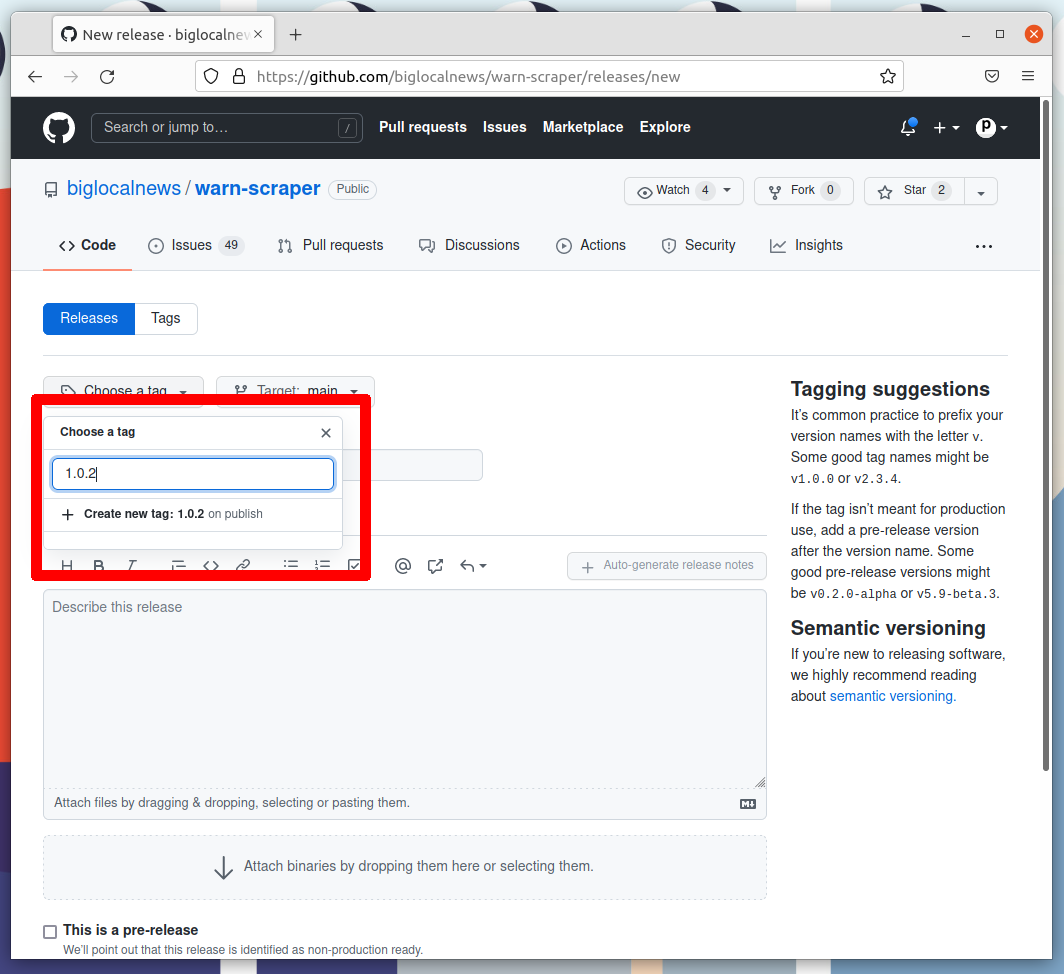
Enter your version number into the box. Then click the “Create new tag” option that appears.
4. Name the release
Enter the same number into the “Release title” box.
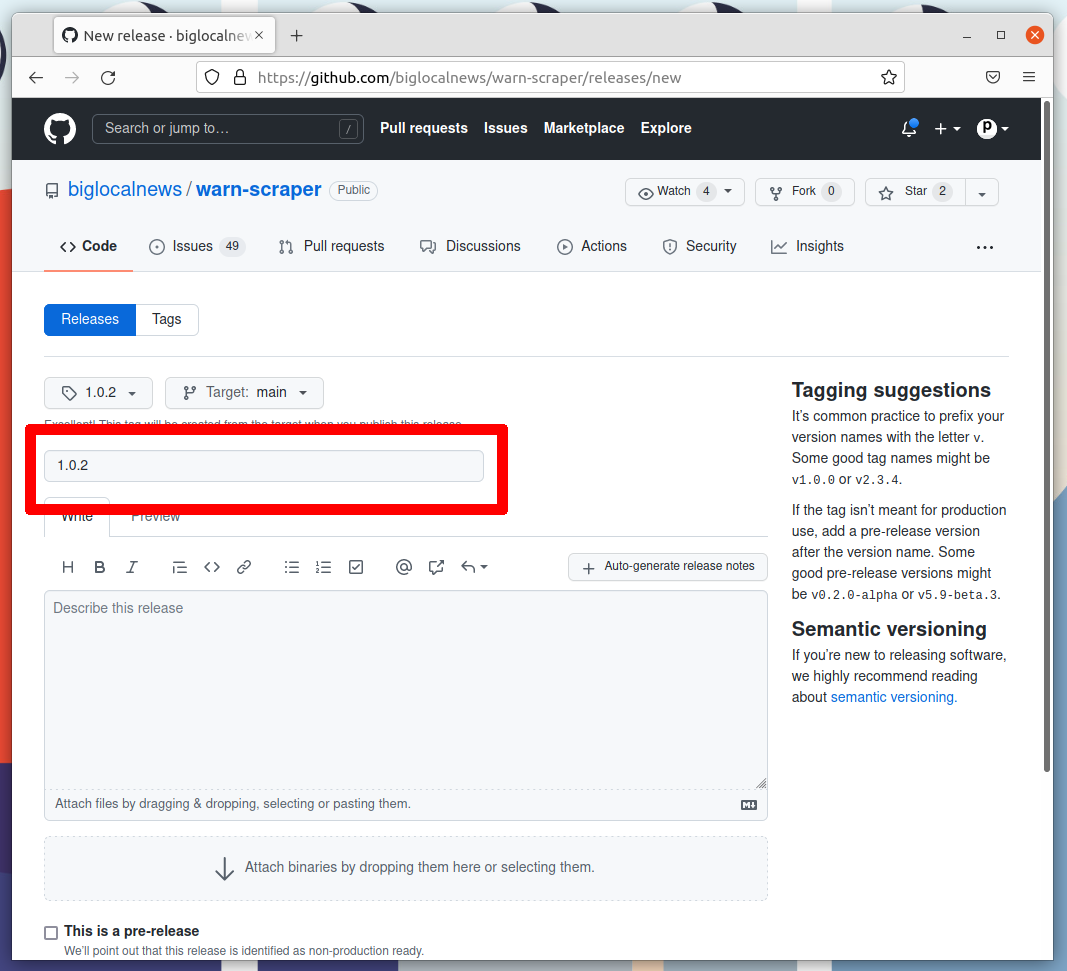
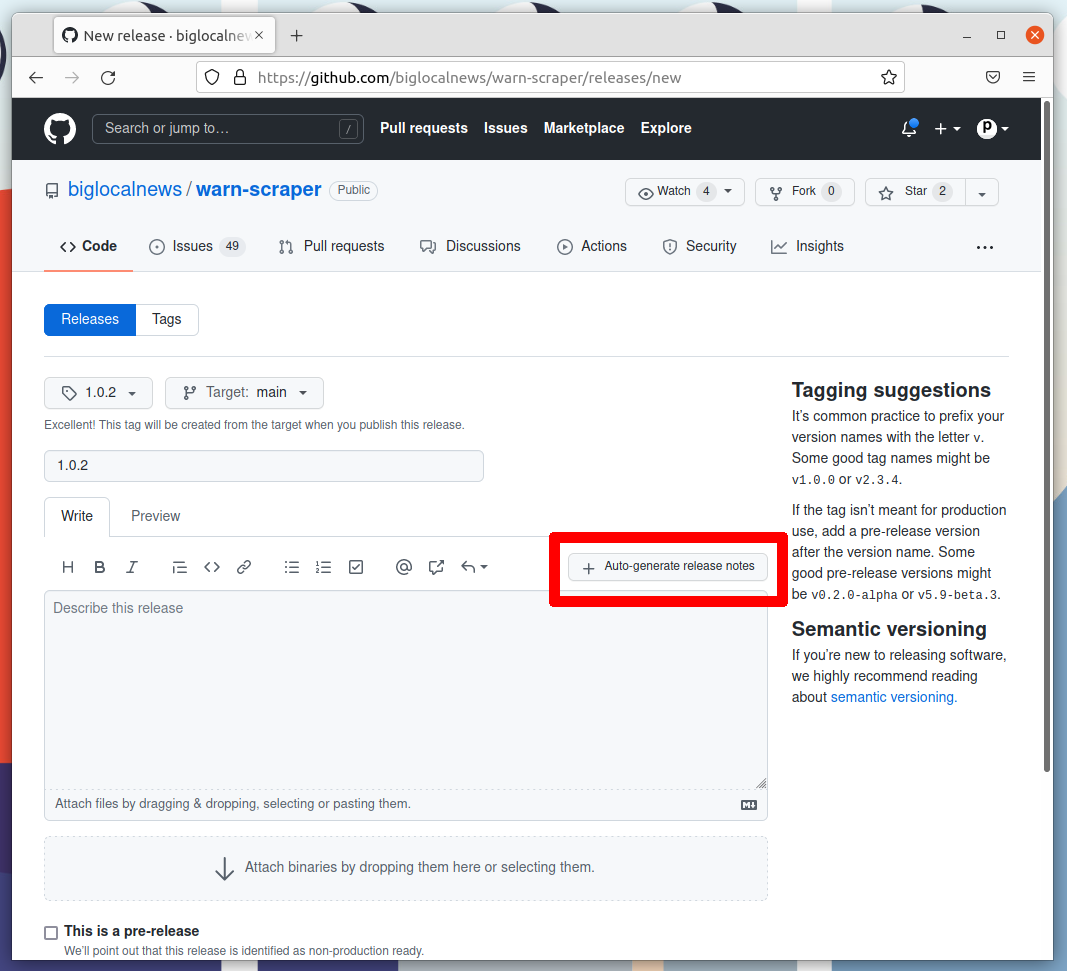
5. Auto-generate release notes
Click the “Auto-generate release notes” button in the upper right corner of the large description box.
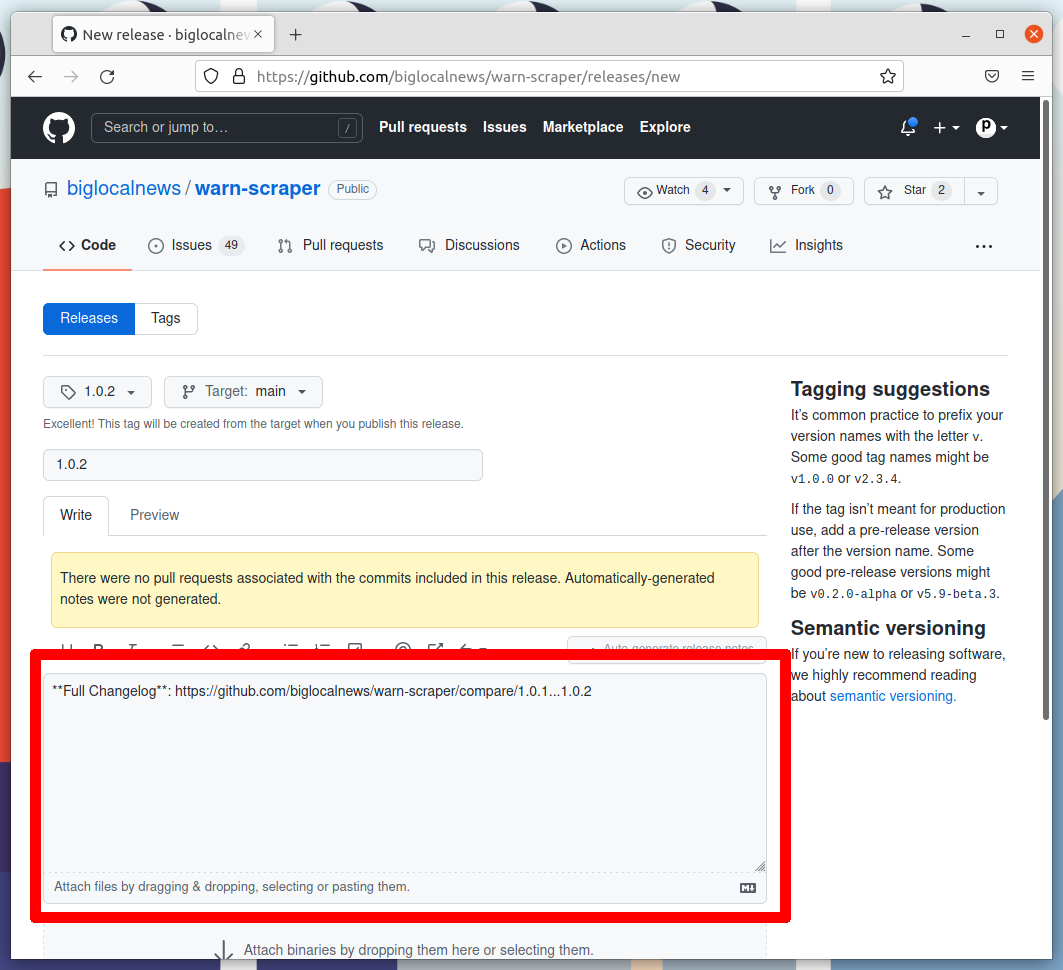
That should fill in the box below. What appears will depend on how many pull requests you’ve merged since the last release.
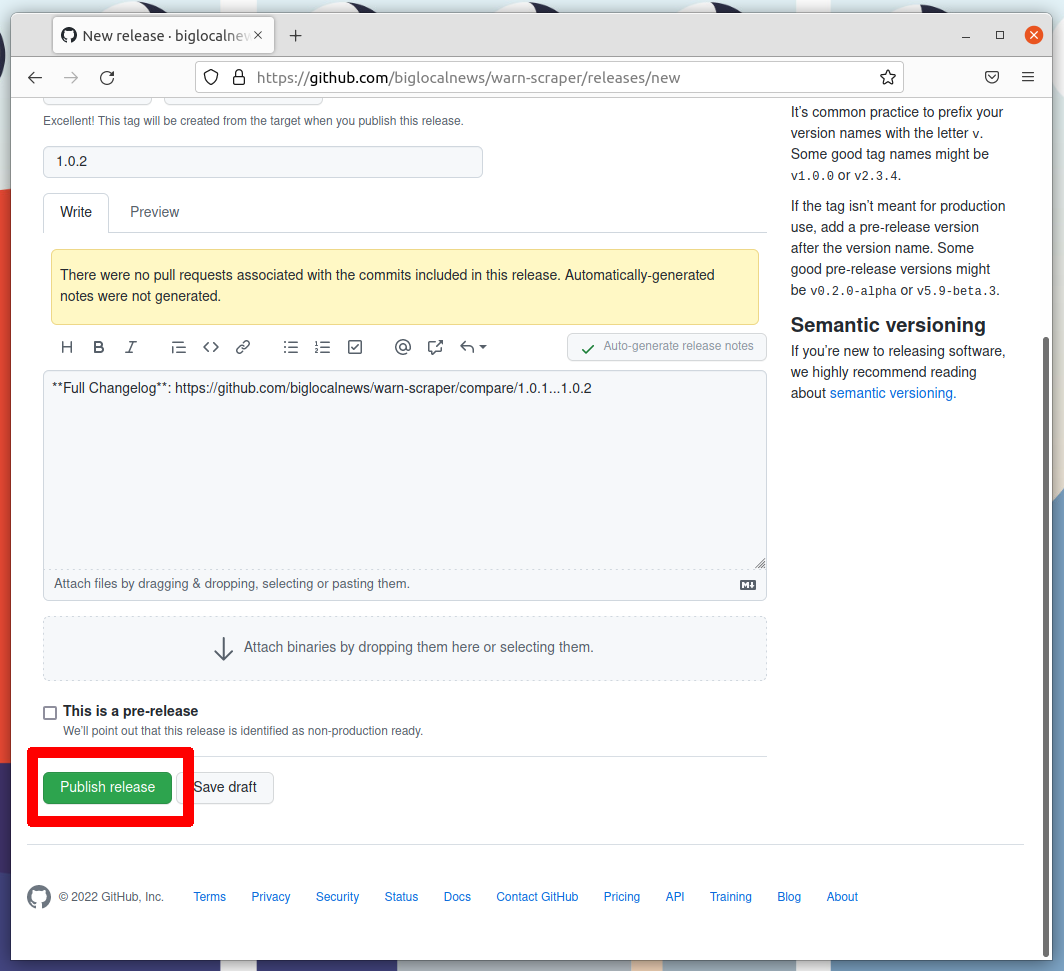
6. Publish the release
Click the green button that says “Publish release” at the bottom of the page.
7. Wait for the Action to finish
GitHub will take you to a page dedicated to your new release and start an automated process that release our new version to the world. Follow its progress by clicking on the Actions tab near the top of the page.
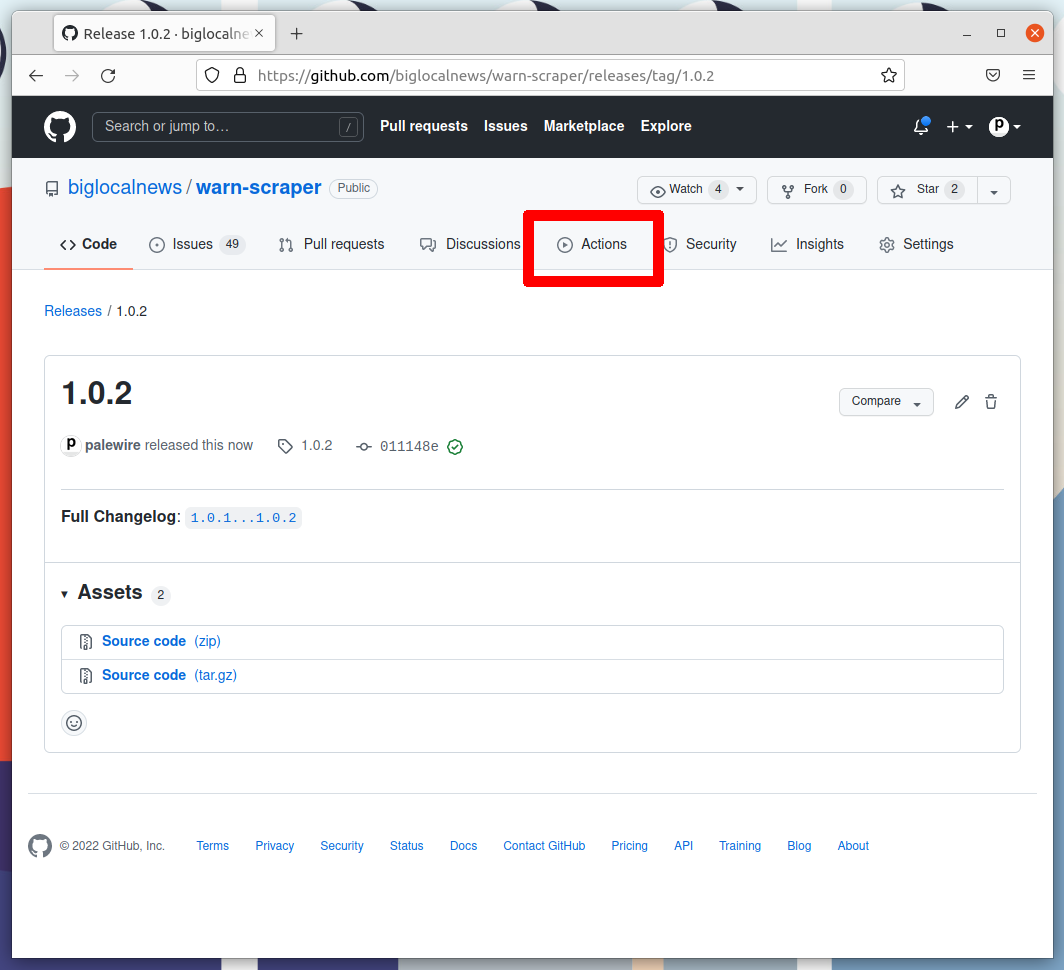
That will take you to the Actions monitoring page. The task charged with publishing your release should be at the top.
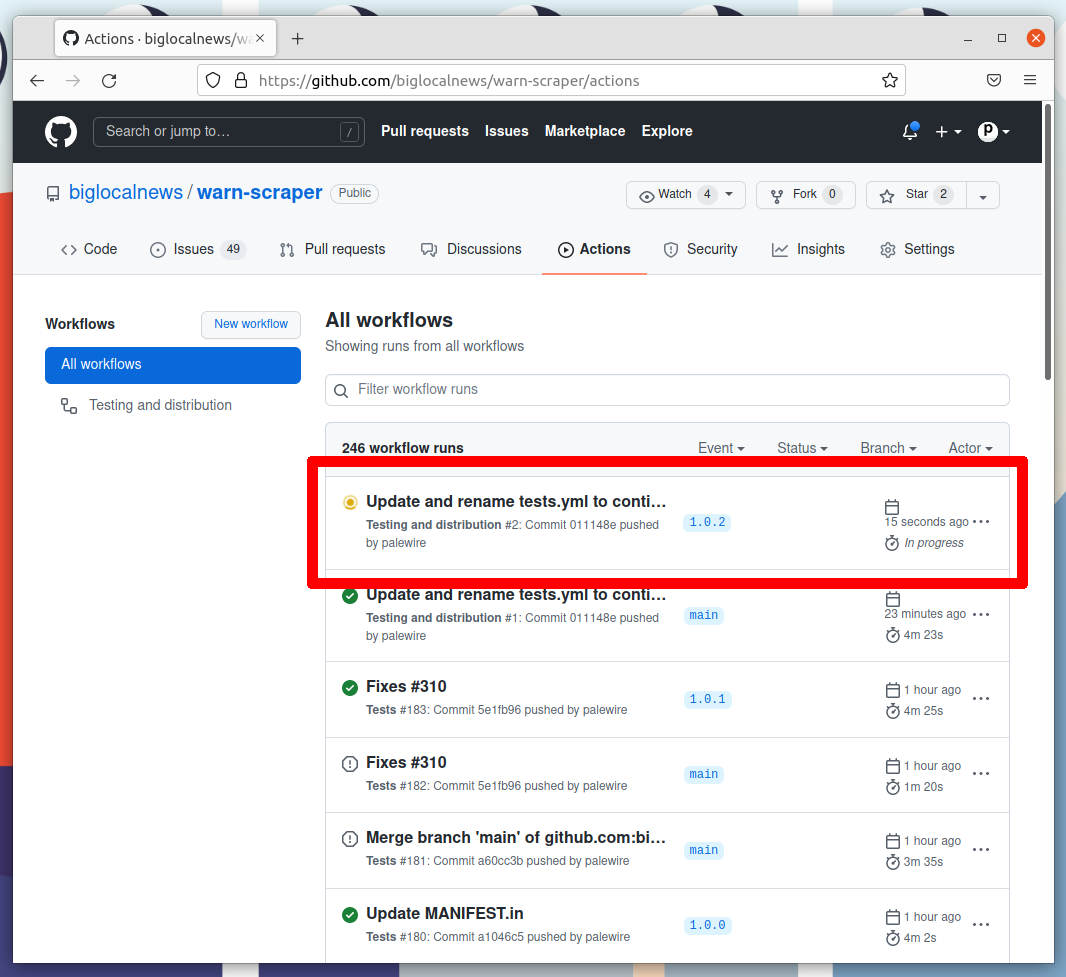
After a few minutes, the process there should finish and show a green check mark. When it does, visit civic-scraper’s page on PyPI, where you should see the latest version displayed at the top of the page.
If the action fails, something has gone wrong with the deployment process. You can click into its debugging panel to search for the cause or ask the project maintainers for help.